
XM Cloud – Welcome the brand new Metadata Editing Mode for Pages (Part 2)
This blog post series discusses the latest Pages Optimizations. To access the new features, upgrade to JSS 22.1 or higher and enable the Pages feature flags. To migrate to the latest foundation head,
Welcome back to this little blog post series about the latest Pages Optimizations. For all of you, who did not read the first part, I would highly recommend to go back read that first and come here again as this post assumes you already know, what these new features are. XM Cloud – Welcome the brand new Metadata Editing Mode for Pages (Part 1)
Without any further words we will directly dive into the topic of, how can get these new features? The answer is very clear and simple.
- Upgrade your solution to use latest JSS 22.1.0 or higher
And that’s it. By doing so you fully opt-in for the newest and latest Pages optimizations.
Step by Step upgrade of head application
One core requirement to use the new Pages features is that the head application is based on JSS version 22.1.0 or higher. Most likely, if you already have a head application you need to upgrade to the “latest” JSS version. The following chapter gives an overview of how this can be done easily. For more details you can also follow the following Video, which gives you some general idea how to do it https://www.youtube.com/watch?v=xllAcmdKcj0&list=PL1jJVFm_lGnzqYagW1UahIBeqTIYSBQMc&index=9
Merge with the latest foundation head
Assumption: You started your solution based on the latest foundation head provided by Sitecore (https://github.com/sitecorelabs/xmcloud-foundation-head)
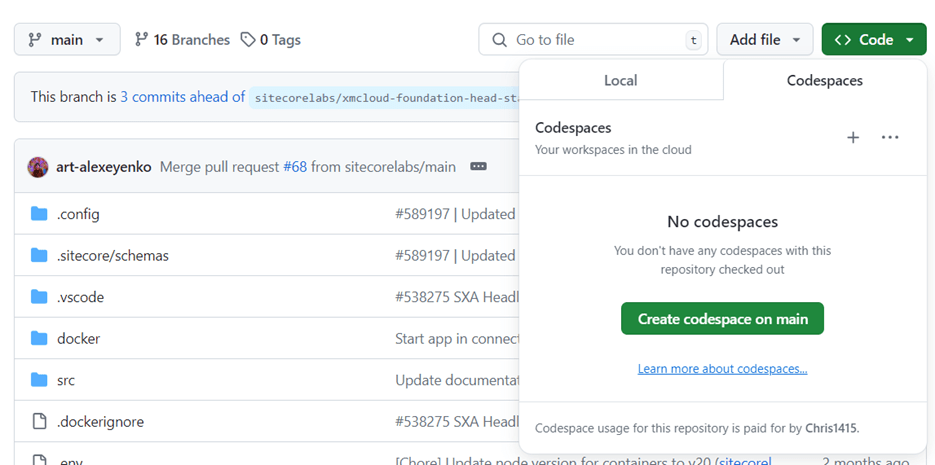
1. You can get the latest foundation.head via clone -> pull.
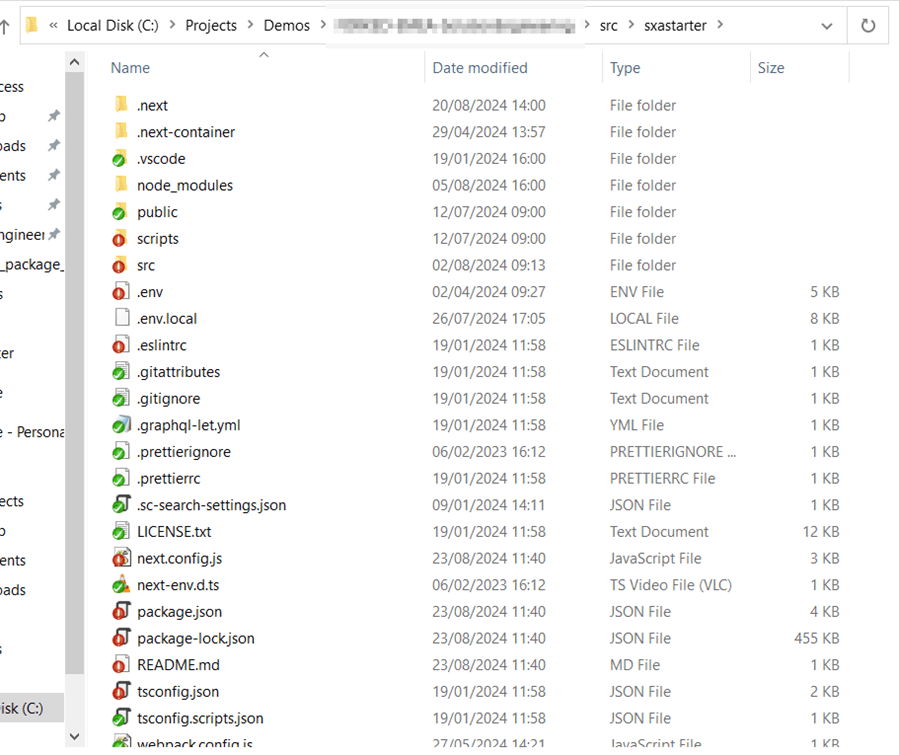
2. Then you copy over all the files and overwrite the ones from your repository. You will notice that some (or many) files have changed.
3. Now go through all the changed files and determine if you can easily use the new file or leave the old one or manually merge your version with the latest foundation.head version
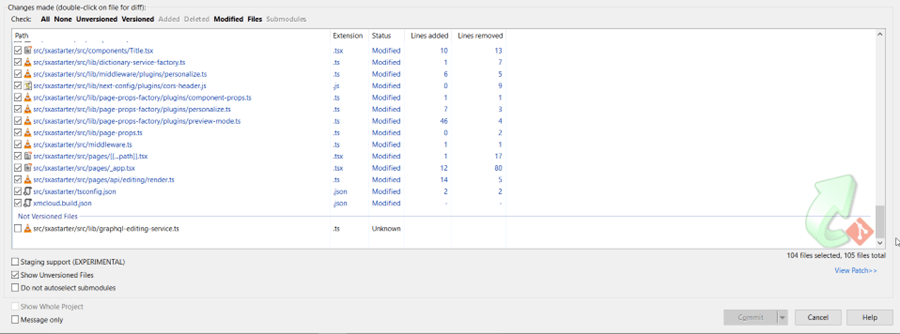
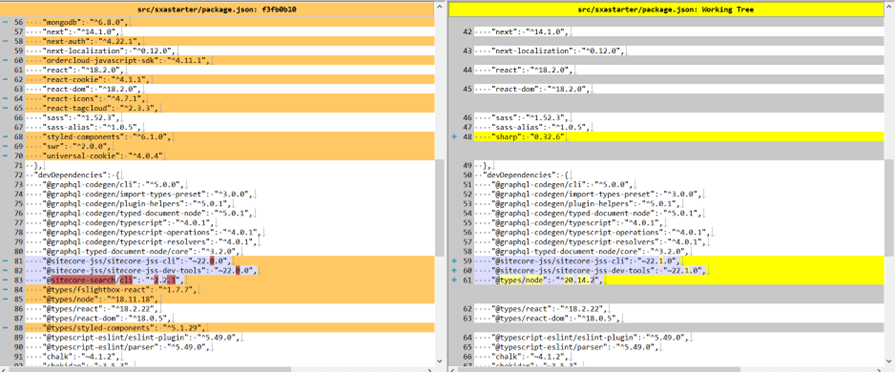
For files you never touched (and maybe have no idea, what they are doing) just take over the new one. For files where you know, you made customizations, go into the side-by-side view and individually merge foundation.head new logic with custom existing custom logic. A prominent example of such a file is the package.json. Most likely you added some packages on your own. And with a latest foundation head update you need to manually make sure your packages are still there and all the Sitecore packages are updated
4. Once the merge is done you run npm I to install all the new dependencies
5. Now you can test the upgraded foundation head (Locally or deployed into some special environment)
During this merge you can see, that all the changes mentioned in the latest JSS release notes were done in the foundation head, which let the new Pages Speed Optimization happen https://github.com/Sitecore/jss/releases/tag/v22.1.0 or side by side compared to the previous version https://github.com/sitecorelabs/xmcloud-foundation-head-dev/pull/175/files
What might have changed in custom code?
As a developer it is crucial to understand, what exactly has changed or might have changed in your solution, where you need to put an eye on. In a later chapter you will also learn more details about, what is happening behind the scenes e.g. in the SDK
Metadata property
In case you examine now the layout response you will notice you have new properties available. The usual Sitecore JSS field is now extended with a property called Metadata. Those metadata are used internally to return in the initial request all the additional “Metadata” of a rendering and render those in Pages. Based on this minimal set of data, Pages is able to offer WYSIWYG and hydrate with the result of the async call, which brings ALL the additional necessary data.
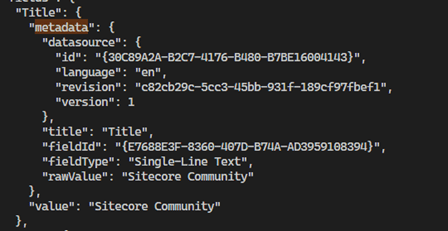
See above a simple example of a Single-Line-Field with the content of the new Metadata field. As you can see there is basic information about the Datasource, the field type as well as the value. Most important of course is the field ID to correctly find and map with the rest of the data.
If you upgraded the foundation.head correctly you also have all the needed model mapping code to directly use those new Metadata if needed.
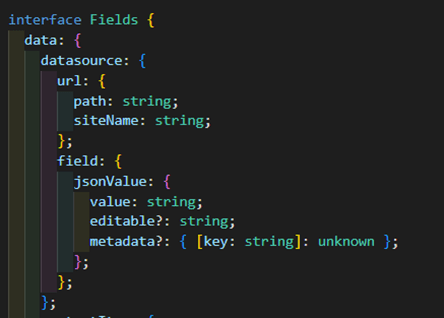
Up to this point I did not encounter a scenario, where I needed to access those data directly in the foundation head. Just JSS under the hood actively uses those data as you will see later on.
Metadata rendering mode
You will also notice that you now have an additional rendering mode called “Metadata” to actively react to the fact that you are in Metadata mode. Or the other way around to react if you are not.

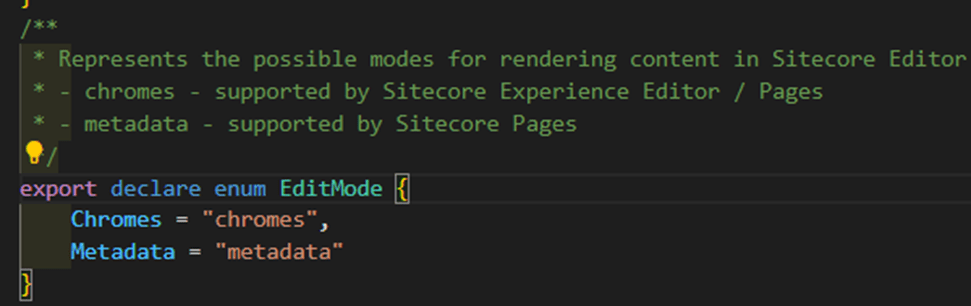
See the latest changes in the foundation.head Image component. There is an example of how to react on Metadata to render the image correctly.
Metadata vs. Editable property – When to use what?
As you can already see in standard Image.tsx you can use the check of the Edit Mode to determine if new Metadata mode is used or not. This is necessary in case you are still using chromes mode for example when working in Experience Editor rather than in Pages. Keep in mind, that you should rework all the code, which is using Editable property to switch to Metadata property and overall move from chromes mode to Metadata mode. But as long as you need to support both Experience Editor AND Pages you need to build a switch similar to the one from Image.tsx for all your custom components relying on Editable property. See below an example of the legacy chromes based editable output in edit mode vs. the new Metadata output.
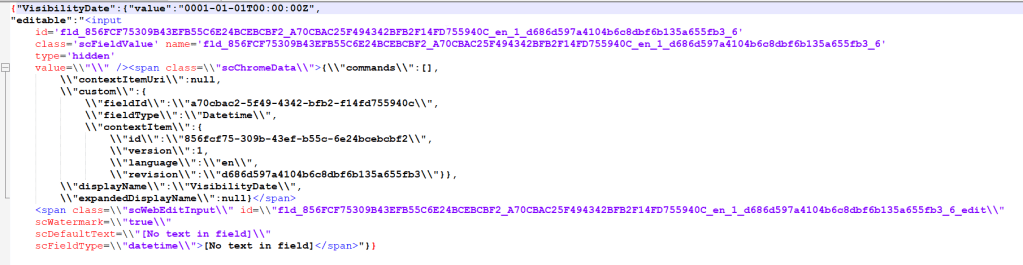
As soon as you do the move to fully go Metadata Editing Mode and without the need to go back to Experience Editor you can fully remove usages of Editable property (as it is not used and filled anymore) and all the checks to further simplify your code.
Test if the new Rendering Mode is enabled
You can easily check if the new rendering mode is now used or not. Just open the network tab and check if an API call like this one can be found
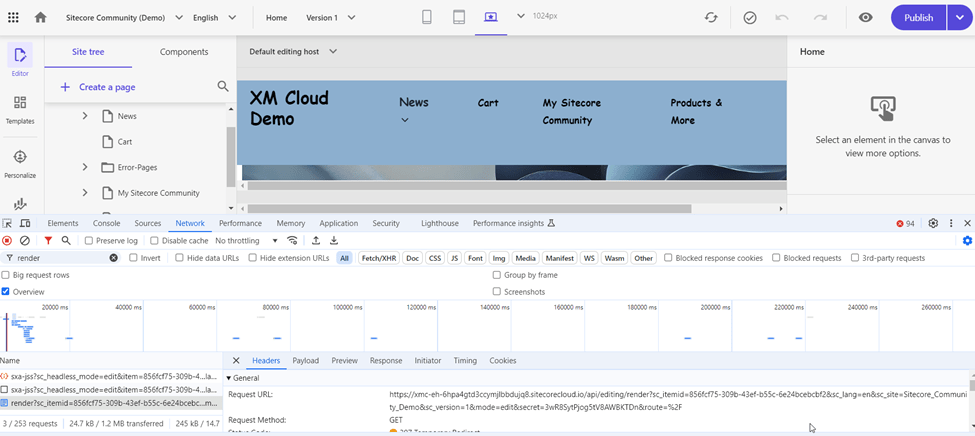
If not you should look if you find a call like the one below.
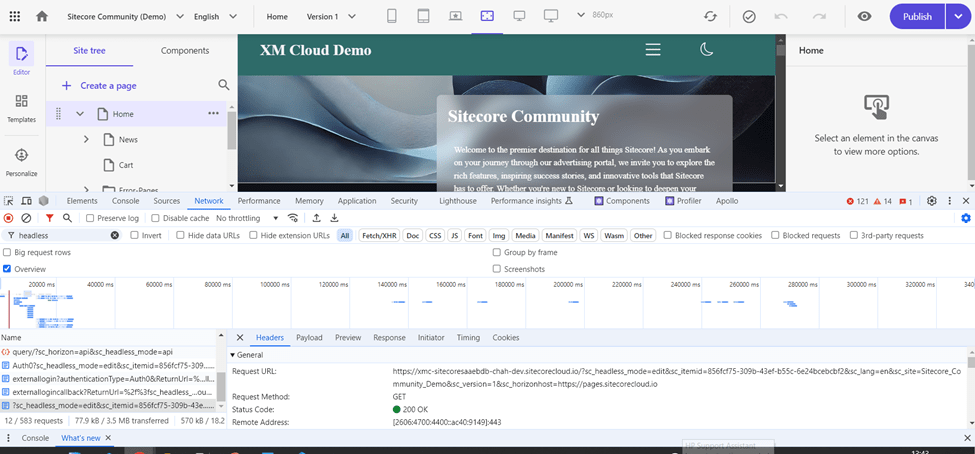
This one indicates that the old chromes approach is still used. In that case ensure latest JSS version is deployed or you did not actively opted-out from Metadata Rendering Mode.
You can also check the so called /api/editing/config endpoint call from Pages to grab the current configuration and check if it gets the information to use chromes or Metadata.
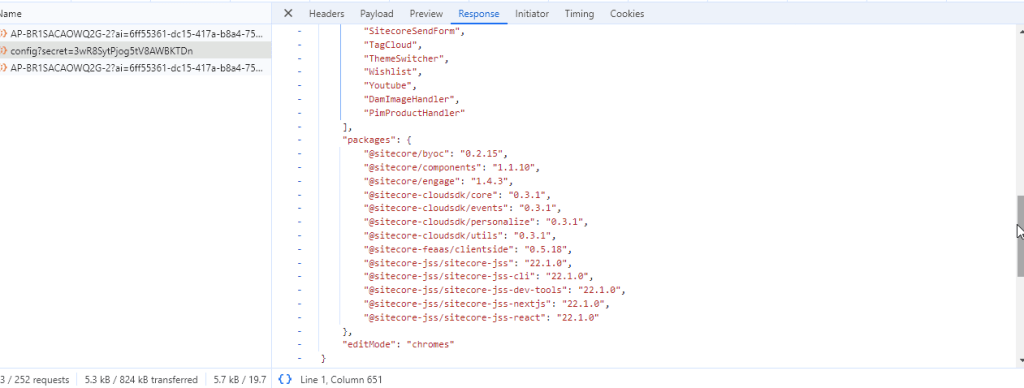
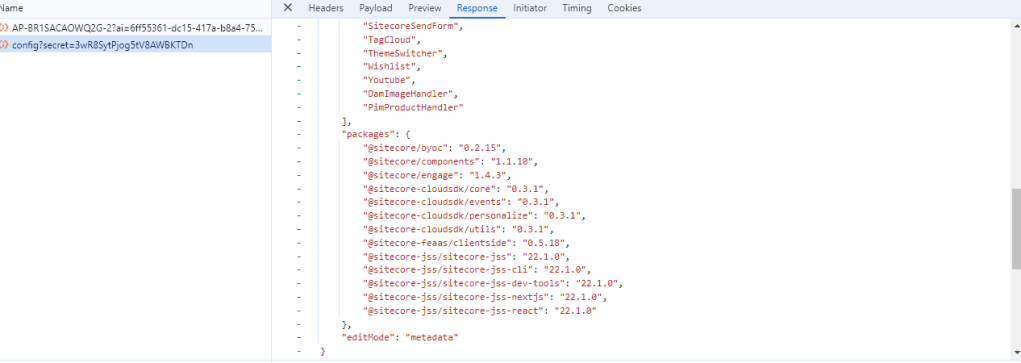
Conclusion
Following this guide including the referred video should get you upgraded pretty quickly. For me it was an effort of about 2 hours to fully upgrade my solution and get everything tested. You might ask yourself, what do I now get from all of that? Why did we do that?
And the next and last blog post will tell you in detail which benefits you get and therefore you will fully understand why we are doing all of this and why this will be a real game changer.
- architecture
- devops
- sitecore-platform
- xm-cloud